
Participating Offices
National officesNational design offices issue national design rights in their respective countries. Currently the national offices participating in Designview are marked with the green icon displayed in the home page. If the icon is in grey, that means that the designs from that National Office are not available in the application.
BOIPBOIP (the Benelux Office for Intellectual Property) is the official body for the registration of trade marks and designs in the Benelux.
EUIPO Go back to the top
The EUIPO (the European Union Intellectual Property Office) is the official trade marks and designs registration office of the European Union.
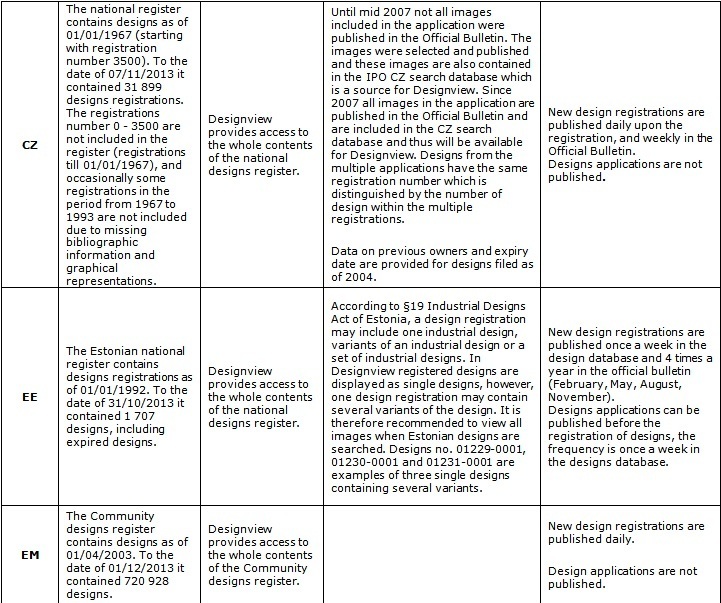
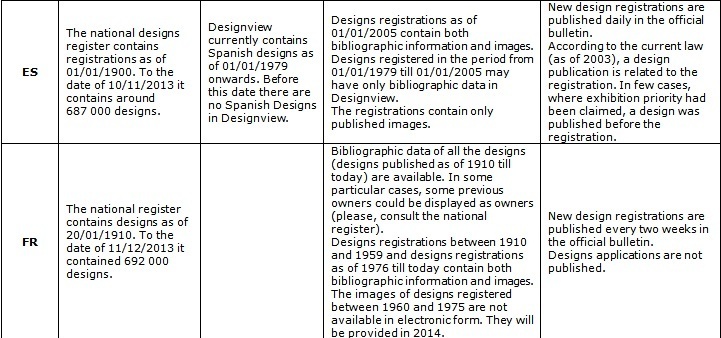
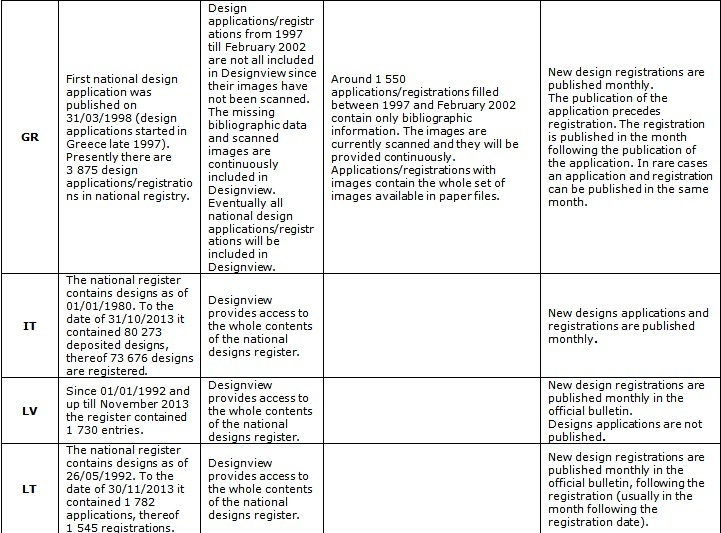
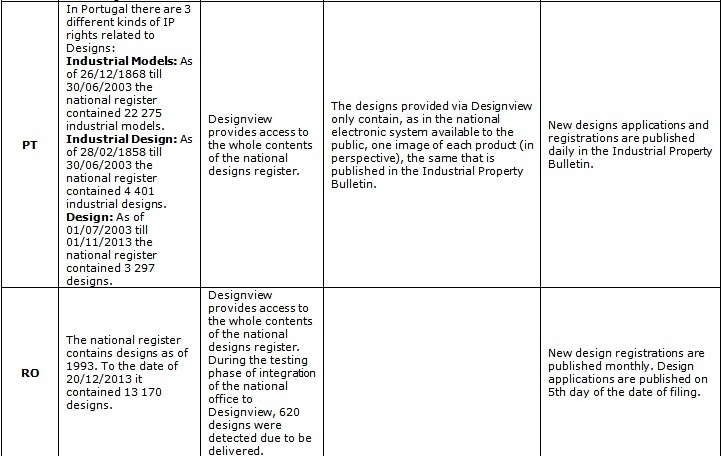
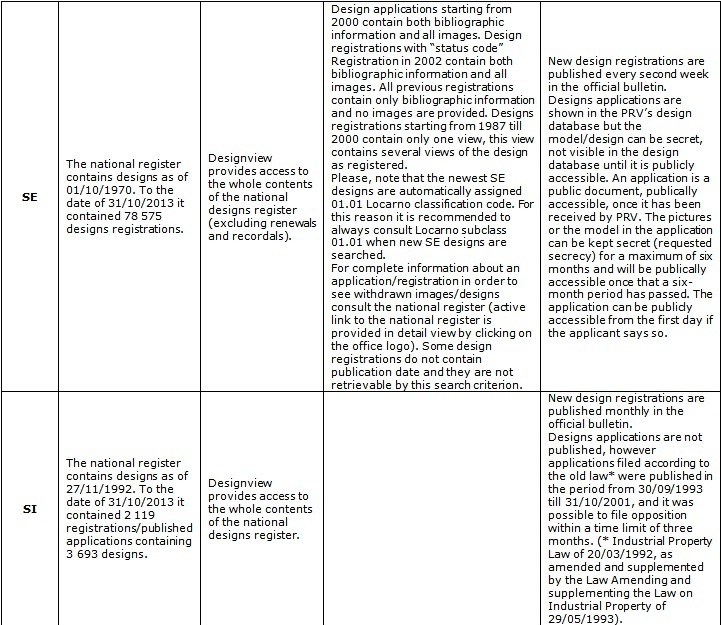
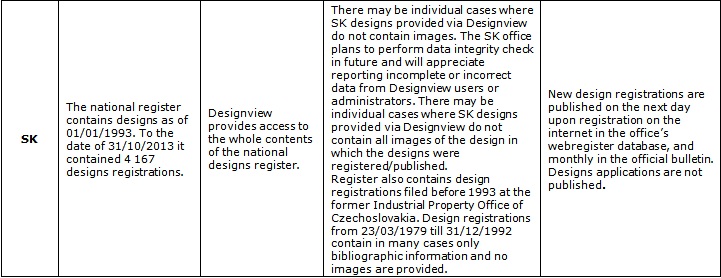
The contents of publicly accessible registers of these national, regional and supranational offices are now available in Designview – common information tool (hereinafter also the application). Currently participating offices are marked with the green icon displayed in the home page. If the icon is in grey, designs from that particular office are not available in the application.
European Union Intellectual Property Office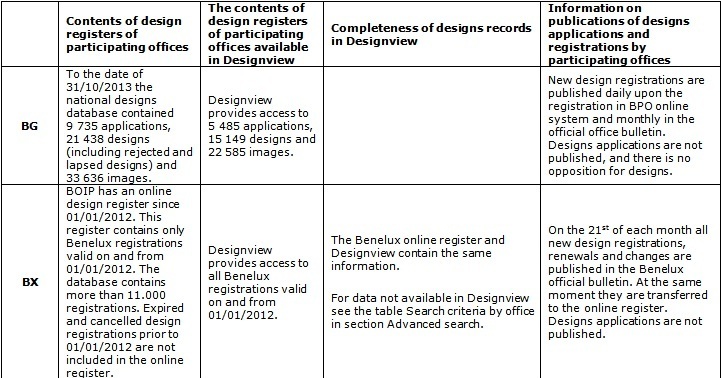
Language selector
The application interface is available in 23 official languages of the European Union. The language selector is available on every page in the right top corner. The languages in the selector are presented in alphabetical order using the alphabet corresponding to the current interface language.
Quick search
- in 23 language versions of the selected term in EuroLocarno, and
- in all languages used by the participating offices for the selected term translated by Google Translate online dictionary into those languages.
The search is performed in indications of products/design titles and returns the exact matches of 23 terms of EuroLocarno restricted to the Locarno subclass in which the EuroLocarno term is enlisted. For example: search for Airplanes returns results for designs registered in Locarno subclass 12.05 containing one of the following term language variants:
- bg: Самоле
- cs: Letadla
- da: Flyvemaskiner
- de: Flugzeuge
- el: Αεροπλάνα
- en: Aeroplanes
- es: Aviones
- et: Lennukid
- fi: Lentokoneet
- fr: Avions
- hr: Zrakoplovi
- hu: Repülőgépek
- it: Aeroplani
- lt: Aeroplanai
- lv: Lidmašīnas
- mt: Ajruplani
- nl: Vliegtuigen
- pl: Samoloty
- pt: Aviões
- ro: Aeroplane
- sk: Lietadlá
- sl: Letala
- sv: Flygplan
As both the Locarno and EuroLocarno classifications use plural forms,
only matches of indications of products in plural forms can be returned.
The Google translate also returns the exact matches, i.e. plural forms
of the selected term from the Auto-complete option. The search based on
Google translations is not restricted to a particular Locarno subclass,
therefore the search results consist of all designs which have
indication of product/design title containing the selected term. If it
is needed the search can be limited to a particular class/subclass of
Locarno classification in the advanced search mode.
Advanced search
The advanced search provides the choice of different search
criteria which can be used separately or in combination. The relation
between the selected search criteria is AND. To learn how to change the
default settings see the section Logical operators.
The fields for entering terms of advanced search are not case sensitive.
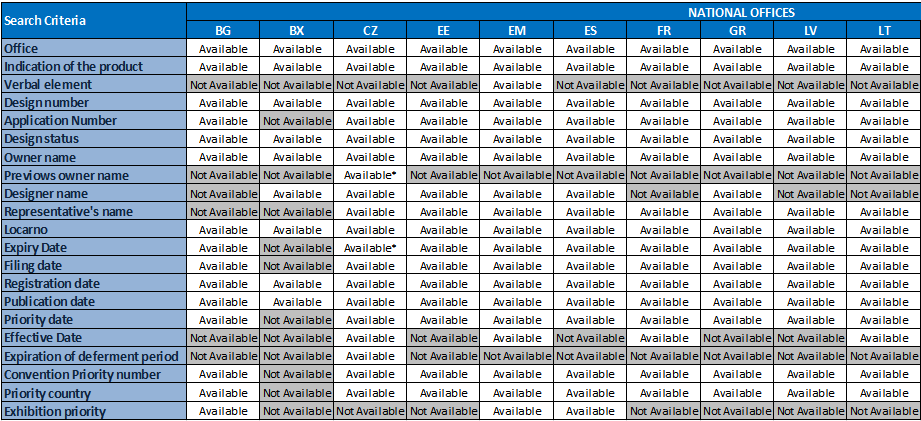
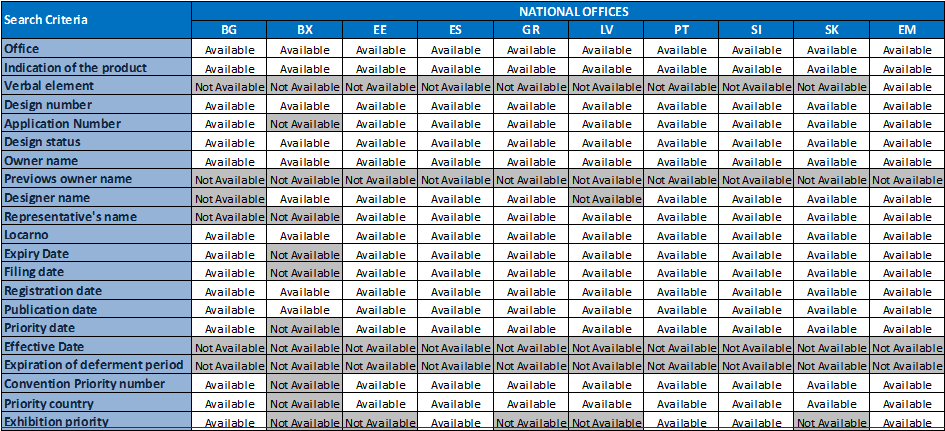
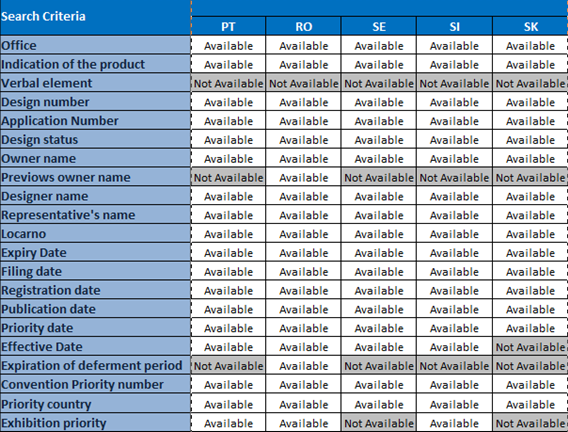
As not all search criteria are applicable to all registers of the
participating offices, the following table provides an overview of
criteria available in participating offices. The user is also informed
via instant tooltips available on the advanced search page indicated by
yellow question marks.
Search criteria by office:
 Question marks
In addition to giving access to the help pages, question mark icons available on the left of each search criterion can appear in three different colours:
- Green (by default): Everything is OK.
- Yellow: Hover over the icon to see a warning message informing on availability of a search criterion in a particular office
- Red: Hover over the icon to see the error message.
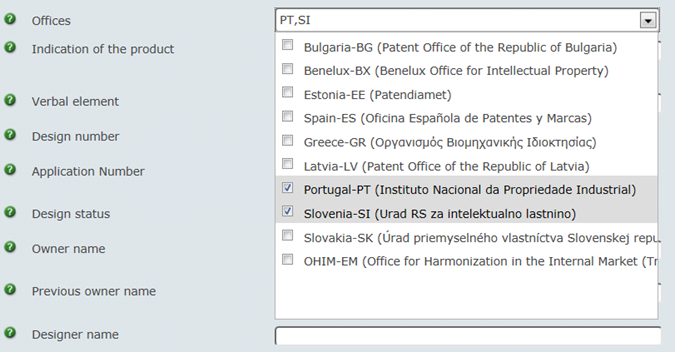
Limit the search to one or more offices by ticking the corresponding check boxes in the drop down menu.
 Search by Indication of the product
On the contrary to the quick search mode, in the advanced search
mode, the auto-complete option is not available. Free text can be typed
in the field to perform the search.
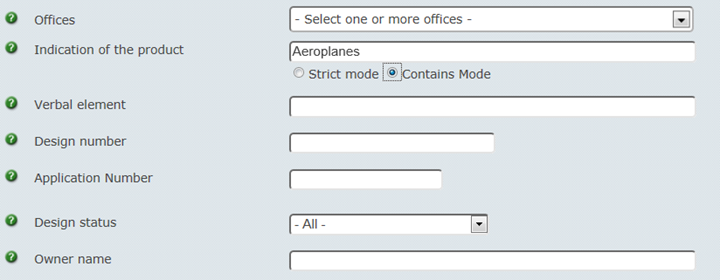
There are two options to be selected:
- Strict Mode: only the exact matches are returned
- Contains Mode: right and left extensions are applied
The search is performed in the database related to the language of the
interface and in all languages of the participating offices, employing
Google translate dictionary.
There is no restriction to designs registered to a particular Locarno
subclass, therefore the search results consist of all designs which have
indication of product/design title containing the selected term. If it
is needed the search can be limited to a particular class/subclass of
Locarno classification.
Please, note that if the exact match mode is applied a term in plural
returns only designs containing the plural forms of the entered term. A
singular form of the term should be considered to be conducted in
another separate search, or Contains Mode should be considered.
Please, also note that Google translate works with diacritics. To obtain desired results, use terms with diacritic marks.
Wildcards and jokers can be applied in this field.
Free text can be typed in the field to perform the search.
This field reflects any readable 'word' element contained within at
least one of the views of the design, such as letters, words, numerals,
keyboard signs, space, or punctuation, appearing in the representation
of a design independently of any graphical elaboration or special fonts
or styles.
Translations, similarity of meaning, phonetic similarities, figurative
equivalence, mental connotations, etc. are NOT taken into account.
Wildcards and jokers can be applied in this field.
The design number is a string of alphanumeric characters corresponding
to the design original registration number plus a four digit appendix
where the appendix is the sequence number of a design within the
specific registration (example: 000170436-0001, 000170436-0002).
To search for a particular registration, only the registration number
without the four digit appendix can be entered in the field. The results
will contain all the designs within the registration identified by the
sequence number in the appendix.
To search for a particular design within a registration, enter the complete design number including the four digit appendix.
Wildcards and jokers can be applied in this field.
The application number is a string of alphanumeric characters
corresponding to the design original application number. Note that all
designs filed in one application have the same application number. The
results will display all the designs within the application but only if
design numbers have been assigned to the designs (after the registration
of the application) they can be displayed. If the application has been
published before the registration, all designs are displayed in the list
of results without design number. The designs can be identified by
their representations (images) and numbering of images in detailed view.
Wildcards and jokers can be applied in this field.
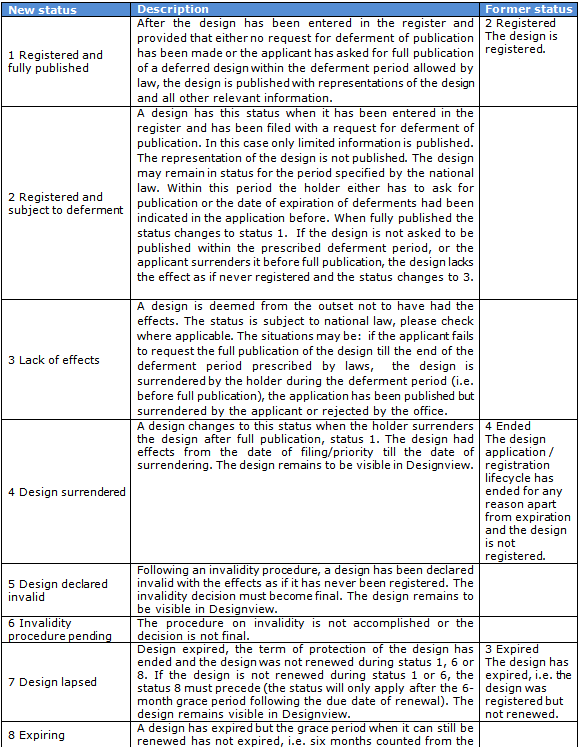
Search by Design statusDesign statuses deal with situations which occur during the life of a design from the moment of filing until its expiration. The applicable statuses can be selected from the scroll down menu. For better understanding the following table is provided with an explanation and corresponding status used in previous version of the application.
The previous four statuses shown in the third column of the table will disappear as soon as all participating offices will apply the nine statuses from the first column.
Note: The descriptions of statuses provided in the second column are solely informative. How and which statuses are applied to designs depends on the participating offices and the applicable legislation.
 Search by Designer name
This criterion can be used to limit searches to designs of a specific designer, either by entering the whole or a part of their name.
Wildcards and jokers can be applied in this field.
Search by Owner nameThere is an Auto-Complete option of previously performed searches. However, the user is able to introduce any text in order to perform the search.
Wildcards and jokers can be applied in this field.
Search by Previous Owner nameDesigns can be transferred from one holder to the other. Normally users do not have access to information other than to the last/present holder though the information on previous holder/s is/are stored in the registers. The search by previous owner name provides access to the historical design rights holders.
There is an Auto-Complete option of previously performed searches. However, the user is able to introduce any text in order to perform the search.
Wildcards and jokers can be applied in this field.
Search by Representative's nameThis criterion can be used to limit searches to designs of a specific representative of the owner, either by entering the whole or a part of their name.
Wildcards and jokers can be applied in this field.
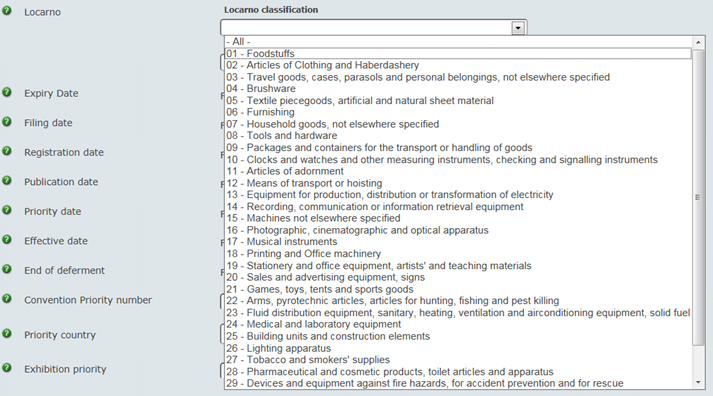
Search by Locarno class / subclassUsers can select one or all class/es and optionally one or all subclass/es from the scroll down menu.
The option 'All' selects all the classes and subclasses.
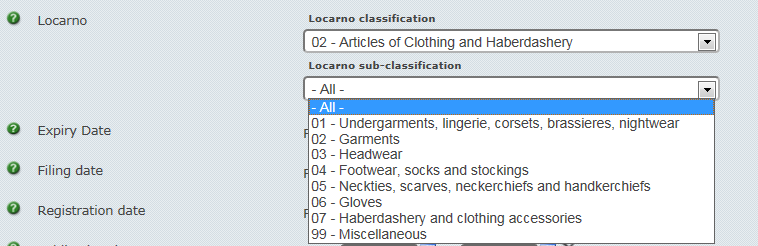
The subclasses displayed are related to the class selected previously. The image below shows the subclasses for Locarno class 02 – Articles of Clothing and Haberdashery:
 Search by Date
The date criteria can be used to limit searches to a certain time period. There are several options provided:
- No dates specified: all designs searched
- From date specified: all designs from the applicable date to present day
- To date specified: all designs up to and including the applicable date
- From and to dates specified: all designs between the applicable dates inclusive
The following searches by date are possible:
Expiry date: The date of expected expiration of the term of protection of a design if not renewed.
Filing date: The date when the application for the registration of a design was filed and the filing date was granted.
Registration date: The date on which the design was registered.
Publication Date: The date on which the design was made available to the public:
- by publishing the application for registration
- by publishing the registration of the design. Where the publication of the registered design is deferred upon a request of the applicant, and the office announces registration by publishing a limited set of information on the design registration, during the deferment period, the date of publication of the limited set of information is provided. Upon the end of deferment, the date of full publication of design is provided.
Effective date: The date since the protection of a design starts.
End of deferment: the date when the deferment of publication of a registered design supposes to come to the end. It can be
- given date specified by the applicant, or
- calculated date as the maximum period of deferment allowed by the applicable legislation.
The date format allowed in Designview application is: DD-MM-YYYY, e.g. 15-11-2013.
A single date or a range of dates in writing or by selecting them from
calendars accessible by two calendar icons next to the date fields can
be entered.

To enter dates ranges in the expert search, the format is shown below.

The user is able to type in alphanumeric characters corresponding to the convention priority number. This criterion can be used to limit searches to designs of a specific convention priority number, either by entering the whole or a part of their number.
Wildcards and jokers may be used to complete this number.
Search by Priority countryA dropdown menu with the countries is shown and one or more countries can be selected.
By default, the option “All” is selected. To clear the selected
countries, the button 'Clear' in Advanced Search must be clicked.

Search by Exhibition Priority
The user is able to type in alphanumeric characters corresponding to the name of an exhibition recognized for the purpose of granting the priority by a participating office. This criterion can be used to limit searches to designs of a specific exhibition priority name, either by entering the whole or a part of the name.
Wildcards and jokers may be used to complete this field.
Sort results bySort the list of search results according to any preferred column before searching by selecting the column from the list in the drop down menu.


Order results
The search results may be listed either in Ascending or Descending order according to the selected preference.

Wildcards and jokers
The wildcards ('*') and jokers ('?') may be used in the following fields: Verbal Element, Design Number, Application Number, Owner Name, Previous Owner Name, Designer Name, Representative Name, Convention Priority Number, Exhibition Priority
- The asterisk (*) substitutes zero or more characters, examples:
'abc*' will search any text starting with the 'abc'
'*abc' will search for any text ending in 'abc'
'*abc*' will search for any text with 'abc' occurring anywhere
- The question mark (?) substitutes only one character, example:
'abc?e' will search for any text with that pattern, e.g. 'abcae', 'abcbe', etc.
Expert Search
It is possible to use all search criteria of advanced search in the
field for quick search This way, it is possible to use the quick search
field as a shortcut to perform an advanced search by using the codes
related to any search criteria or to modify the advanced search
according to specific needs of the user.
Example: To search by national office AND design status, use the following search string:

TIP: The codes are automatically entered in the search field in advanced search mode. Configure a search by selection of the desired search criteria in the advanced search (the codes and search terms appear in the search field, including the syntax of the codes). Then switch from the advanced search to quick search and manually edit the search string, in particular by modifying the logical operators (AND to OR or AND NOT). Please note that by default the logical operator is 'AND'.
The codes and examples of search terms in brackets:
- oc: National Office Code (ES, PT, EM...)
- ipvalue: Indication of the product (table)
- ve: Verbal element (Barcelona)
- did: Design number (002270983-0003)
- sc: Design status (type Lapsed or select from scroll down menu)
- anm: Owner name (type LG Electronics or select from Auto-Complete list of previously searched owners)
- dnm: Designer name (Dolce)
- rnm: Representative name (Simmons)
- lc: locarno classification and sub-classification (type 10.01 or select from scroll down menu)
- prion: Convention priority number (2013-010275)
- pctry: Priority country (JP or select from scroll down menu)
- expn: Exhibition priority (Shanghai)
Please note that the dates are easier to introduce by using the calendar options provided with the different date criteria.
Logical operators
The following logical operators can be used:
AND: Forces the result set to satisfy both operands criteria.
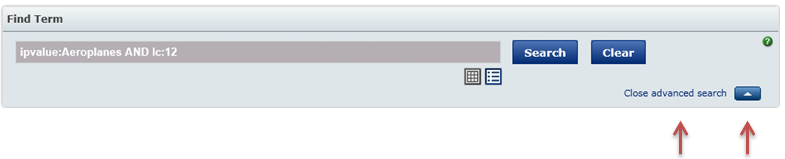
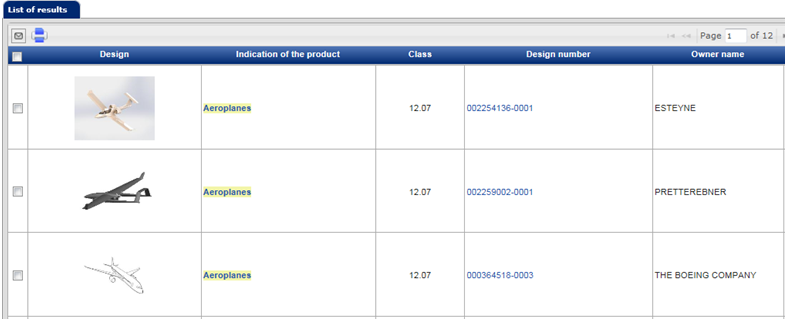
Example: To search for designs containing the word 'Aeroplanes' in
their indication of product and which are classified in Locarno class
12, use the following search string:

OR: Combines the result set returned by the operands criteria (note that AND takes priority over the OR operator).
Example: To search for designs containing the word 'Aeroplanes' in their
indication of product and which are classified in Locarno class 12 or
designs containing the word 'Aeroplanes' in their indication of product
and which are classified in Locarno class 21, use the following search
string:

AND NOT: Forces the result set to satisfy the first operand criterion but not the second.
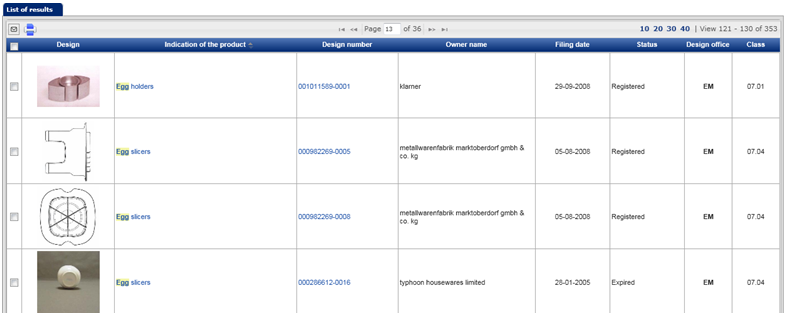
To search for designs containing the word 'Eggs' in their indication of
product but not the word 'boxes', use the following search string:

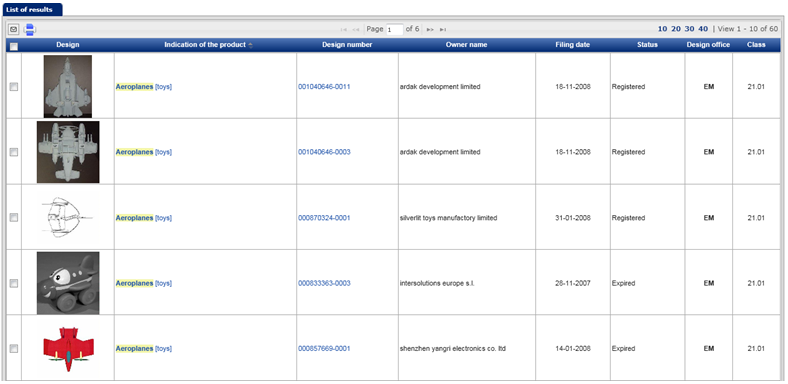
To search for designs containing the word 'Aeroplanes' in their indication of product and which are classified in the Locarno class 21 but not in the class 12, use the following search string:

Warning: with the exception of AND, the use of other logical operators is only possible in the quick search field and is not compatible with the advanced search. The default operator in advanced search between the search criteria is AND.
Search status
Search status icons for the officesNext to each office different icons can appear:
 means that the search was successful; the number of results retrieved per office appears in brackets (150 or less results)
 means that the search was successful; the number of results retrieved
per office appears in brackets. Initially 150 results per office are
displayed in the list of results. If more than 150 results were
retrieved in the search, the brackets contain the information (150 out
of xxxx) where xxxx stands for the total number of retrieved designs per
office. It is possible to extend the number of the designs displayed in
the list of results to 450 per office by clicking on the numbers in the
brackets.
means that the search was successful; the number of results retrieved
per office appears in brackets. Initially 150 results per office are
displayed in the list of results. If more than 150 results were
retrieved in the search, the brackets contain the information (150 out
of xxxx) where xxxx stands for the total number of retrieved designs per
office. It is possible to extend the number of the designs displayed in
the list of results to 450 per office by clicking on the numbers in the
brackets.

 means that the search criterion/a is/are not available for the corresponding office.
 means that there is a kind of error or communication problem with the corresponding office.
The user has the possibility to filter the results displayed by country or countries. The user can add or remove the results for the selected countries by clicking on the icon or icons of the countries displayed in the monitor. In this image the results from the Spanish Office have been removed.

Select the default display
The user has the possibility to change the display of the information:
- the list of results by clicking on the icon indicated by the green arrow, or
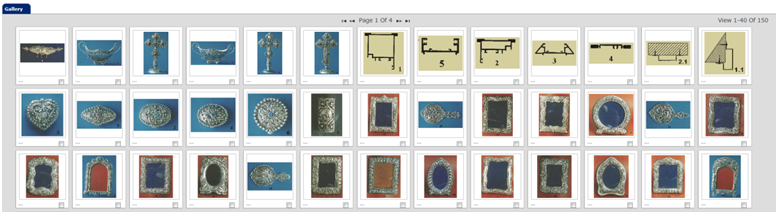
- the gallery of images (thumbnails of the designs) by clicking on the icon indicated by the red arrow:

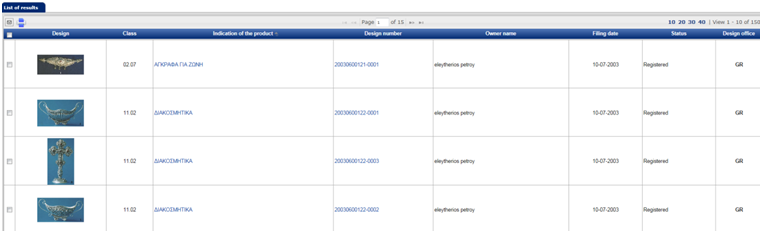
The list of results:
The gallery mode:
List of results
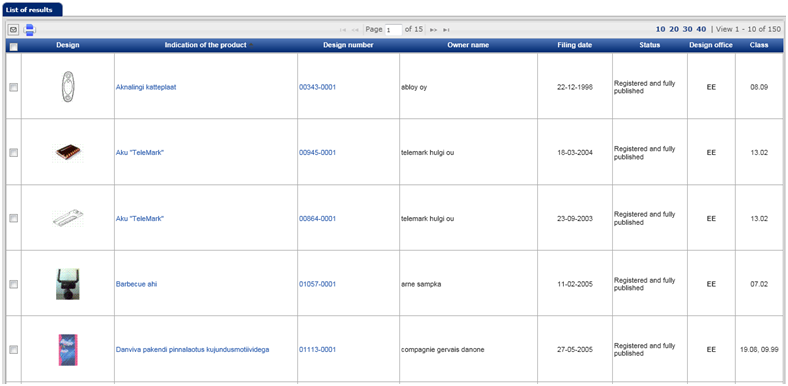
The list of results presents the following information for each design and has the default configuration for the first display:
1. Thumbnail of Design (1st image / best view): The user can hover
over the image to be magnified and click on the image to open a new
window with an enlarged image, navigation through the design
representations (views of design) and basic bibliographic information.
2. Locarno class/subclass: The user can hover over the classification
code to see the title of the particular Locarno class/subclass.
3. Indication of the product: The user can click on the text to open a
new tab with detailed information of the design (Design details).
4. Design number: The user can click on the number to open a new tab
with detailed information of the design (Design details).
5. Owner name
6. Filing date
7. Design status
8. Design Office: The user can click on country code of the
corresponding design office to open a new window of the office home
page.
These eight elements are the ones displayed in the list of results in default order from left to right.
Configure the list of results
The information displayed in the list of results is configurable. As part of the list of results there are the following options:

Sorting the list of search results
To change the sort order of the list of search results, click on a column heading to sort the particular column in ascending or descending order.
Changing the order of columnsThe order of the columns may be changed by dragging the column heading to the desired place.
View / Hide columnsClick the View/Hide columns button in order to select which columns should be shown: a checklist with all the columns is displayed in the list of results.

Reset columns
Click Reset columns button in order to apply the default values.

Select the maximum number of results displayed per page
The number has to be selected from a pre-defined list. Default is 10 designs per page.

Remember column
Click the Remember columns button in order to remember the current (or last one used during the session) layout of the list of results: it is useful when the users have chosen the information they want to see, the order of display of this information (drag & drop of the columns) and the number of results per page.

Reload grid
The user has the possibility to reload grid by clicking on the icon displayed below in order to return to the initial configuration/view of the list of results.

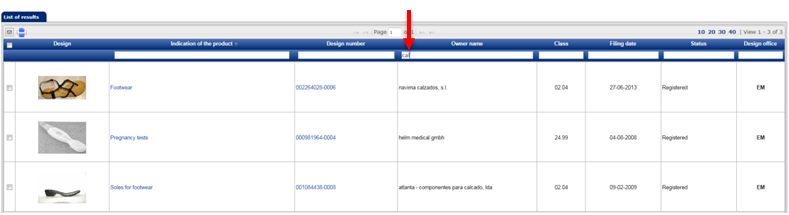
Filter columns
The user has the possibility to use a filter for each column by clicking on the icon displayed below:

This filter allows users to search in the table content (applied to the whole table content, not only the part visible in one page of the paging system). An example of filter by owner name “cal” follows:
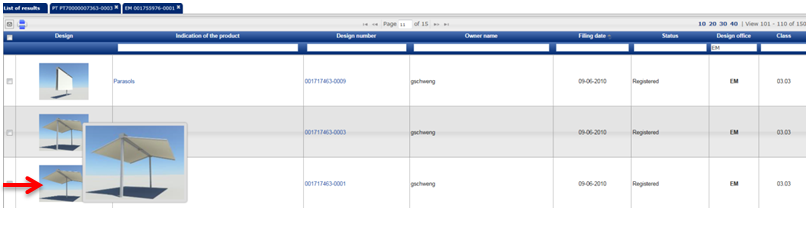
Expand the graphic representation
The user has the possibility to see an enlarged view of the graphic representation of a design (thumbnail) in the list of results by hovering the mouse over the thumbnail
Print list of results
The users has the possibility to print the entire list of results displayed in the page selected, or select some of designs by ticking them in the check box on the left.
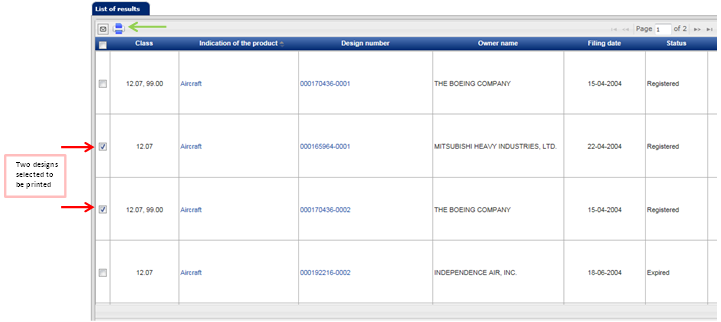
If the user clicks on the 'printer' icon with the green arrow, the designs selected will be opened in a new popup window. By default in the new window for each design selected the following fields will be showed in order to be printed:
- Design number
- Design Office
- Indication of product
- Classification
- Owner name
- Filing date
- Priority date
- Registration date
- Publication date
- Status
- First/best view of the design thumbnail size
At the top of this new window the whole list of design fields is show. The user can add or remove the fields to be printed by clicking on the check box next to each design name field. The minimal information identifying the design cannot be deselected: design number, design office, indication of product. Where indication of the product is in more than one language available, only the indication of the product in the language of the interface is displayed. For Greek and Bulgarian designs indication of product is displayed in both – original language and English or transcription to Latin alphabet where the information is available.

Where indication of the product is in more than one language available,
only the indication of the product in the language of the interface is
displayed. For Greek and Bulgarian designs indication of product is
displayed in both – original language and English or transcription to
Latin alphabet where the information is available.
The accompanying list of search criteria is also printed at the top of the print out.
Design details
DesignSection with the design details.
Design details in a new windowBy clicking on the design thumbnail in the list of results or in the gallery mode a new window with enlarged image and basing bibliographic information is open. The navigator allows browsing among the representations (views) of the design.
Representation (views of Design)Section with the different views of the design.
View image in full scaleThe user can click on the left mouse button over the image displayed on the right of the Representation section. A new tab is opened containing the image in full scale.
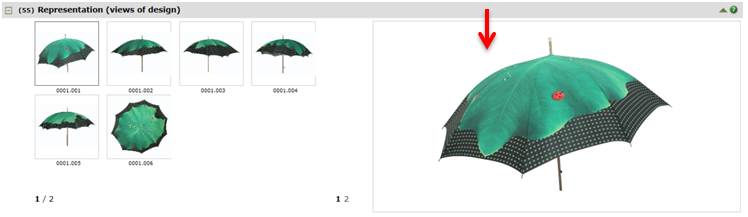
The views of a design keep numbering of the original registration.
Indication of the product and classificationSection with the classification and indication of the product. The verbal element, where applicable, appears in this section.
OwnerSection with the Owner details.
Previous OwnersSection with the Previous Owners details.
RepresentativeSection with the Representative details.
DesignerSection with the Designer details.
Exhibition prioritySection with the Exhibition priority details.
Convention prioritySection with the Convention priority details.
PublicationsInformation about the publications related with the design.
RecordalsInformation about the recordals related with the design.
RenewalsInformation about the Expiry Date, Status of Renewal, and Renewal Instance (i.e. how many times the RCD has been renewed) can be provided.
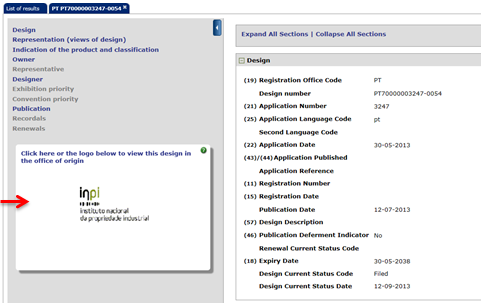
Viewing the details of a design in the office of originSee details of the design in the office of origin's own register by clicking on the office logo in the detailed results page:
Collapse / expand the sections
The user can individually collapse or expand each section. The user can also collapse or expand all the sections at once. The sections greyed out cannot be expanded.
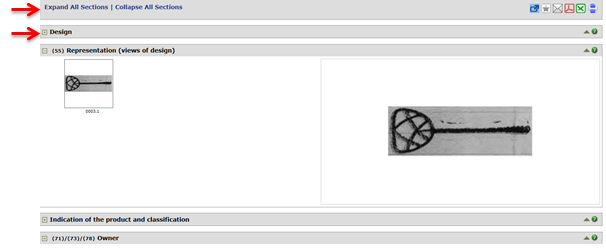
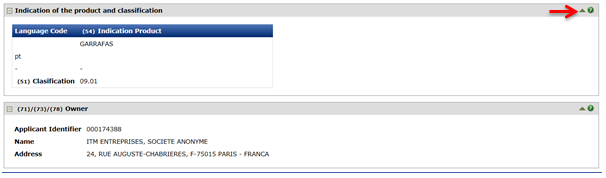
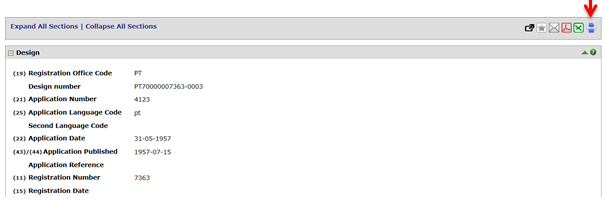
Go back to the first section from any section
From any section, the user can easily go back to the first section (at the top of the page) by clicking in the icon with the red arrow:
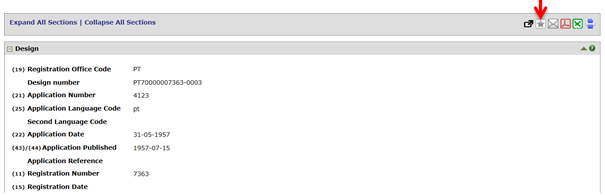
Add to my favourites
The user can add a specific design to 'My Favourites' by clicking on the icon as displayed below:
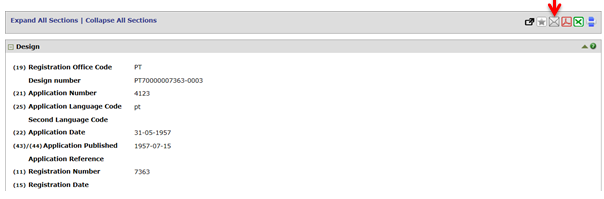
Invite a friend
The user can send the details of a design to a friend - with an editable personalised message by clicking in the icon displayed below:
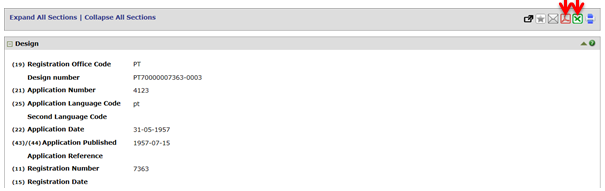
Download details
The user can download the details of the design which is currently viewed. Select the format provided: Excel (excel icon) or PDF (PDF icon).
Print design details
The user can print a specific design by clicking on the print icon as displayed below:
Create alerts
Log in & registerTo use Alerts, it is required to register and log in first. Please also note when registered and/or log in after carrying out a search, Designview resets and any search previously done is lost.
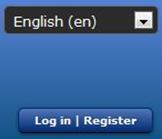
How to register
In order to register, type in the email address and a password, and click the Register button.
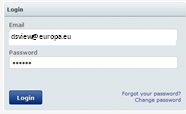
How to log in
To log in, type in the email address and password, and click the Login button.
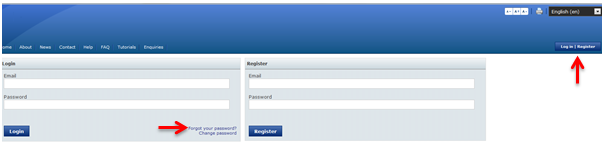
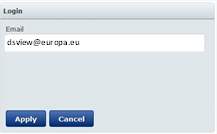
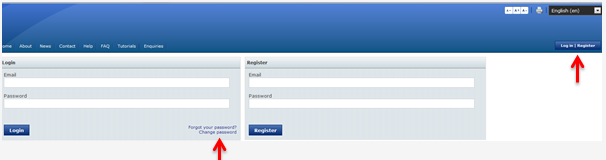
Forgot password?To regain a lost password, click the Log in| Register button and click on Forgot password link as shown in the image below:
Type in the email address and click Apply.
Change password
To change password, click the Log in| Register button and click on Change password link as shown in the image below:
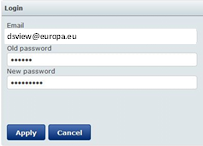
Type in your email address, the old password and the new password, and click Apply.
Configure your alerts
When registered and logged in, tick  icon in the left column for the designs to be updated.
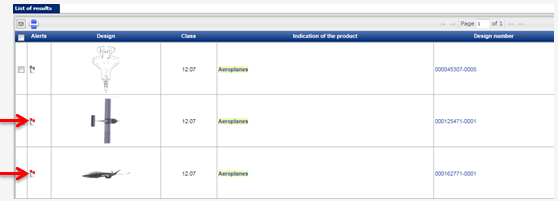
Three different alerts may be established:
- 1. Receive an alert on name change: Tick this check box to be informed when there is a change of the applicant/owner of the design.
- 2. Receive an alert on status change: Tick this check box to be updated on any change of status for the selected design.
- 3. Receive an alert when the expiry date is close to the end: Tick this check box to be warned when the expiry date for the selected design is about to expire. Subsequently, indicate how many days before the expiry date you want to be notified.
In the drop down menu Alert duration in months, select for how many months one or more of the above-mentioned alerts should be active.
Under Subject, type in the subject of the alert emails to be received for the selected designs.

Confirm the alert by clicking the Validate alert configuration button. The selected designs and configured alerts will appear in the View alerts tab.

View alerts
To view the list of designs for which an alert has been created, click the View alerts tab.
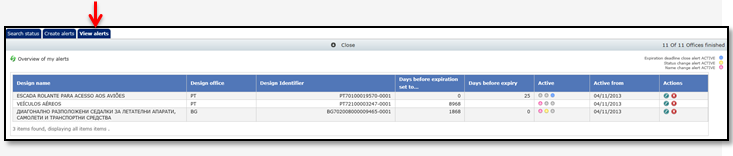
To edit an alert for a design, click the Edit alert button in the Actions column. Check or uncheck the boxes in the Active column to modify the alert.

Subsequently click the Apply changes button now appearing in the Actions column to save the changes.

To delete an alert for a design, click the Delete button in the Actions column.
